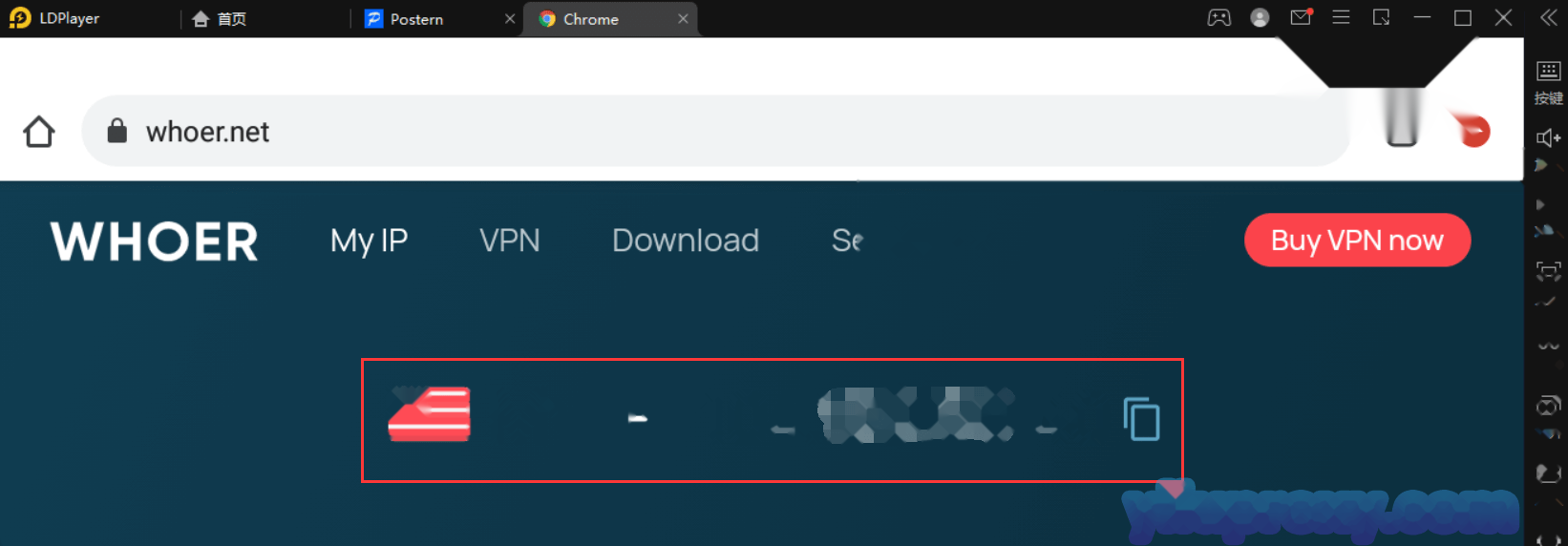
Leidian Simulator uses YiLu Rotating IP
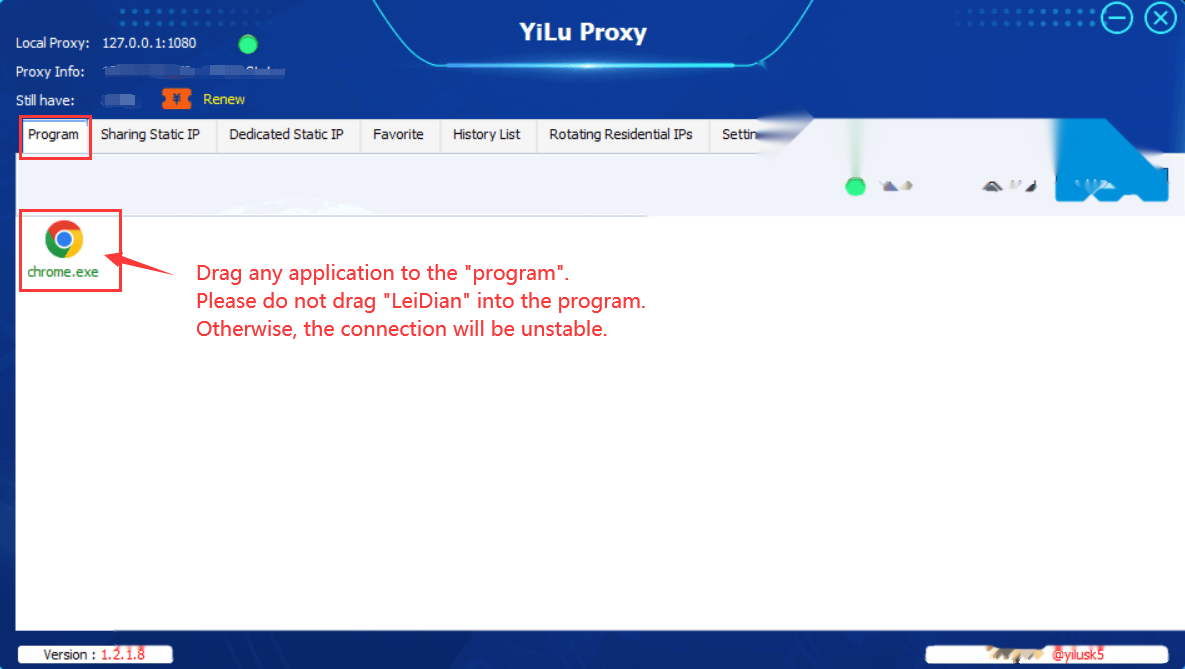
1. Open the YiLu client , and add any application to the "Program" page, please do not add "LeiDian" to the YiLu program, otherwise, the connection will be unstable;
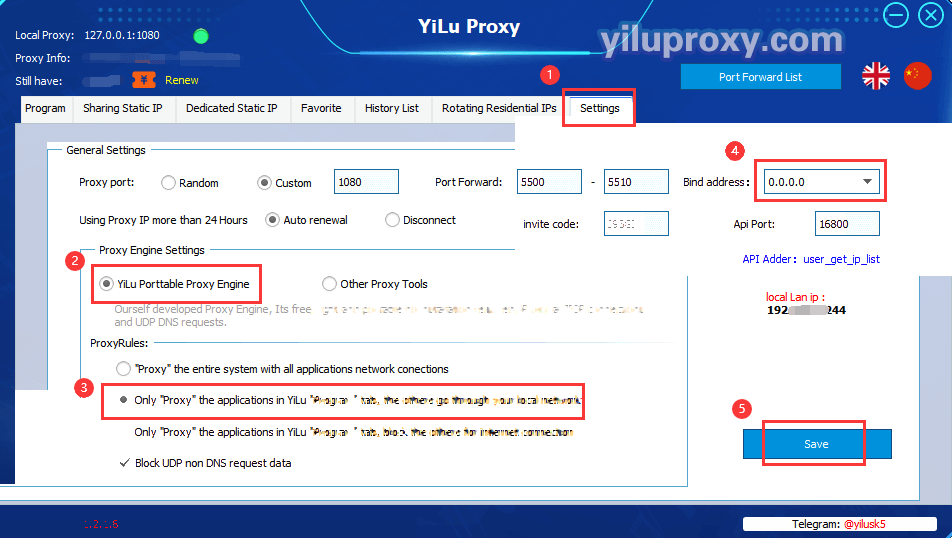
2.YiLu settings:
① Click on the YiLu "Settings" page;
② Select "YiLu Porttable Proxy Engine";
③ Select "Only ‘Proxy’ the applications in the YiLu ‘program’ tab, the others go through your local network";
④ Select "0.0.0.0" for the Bind address;
⑤ Other options can be set by default -> Click "Save";
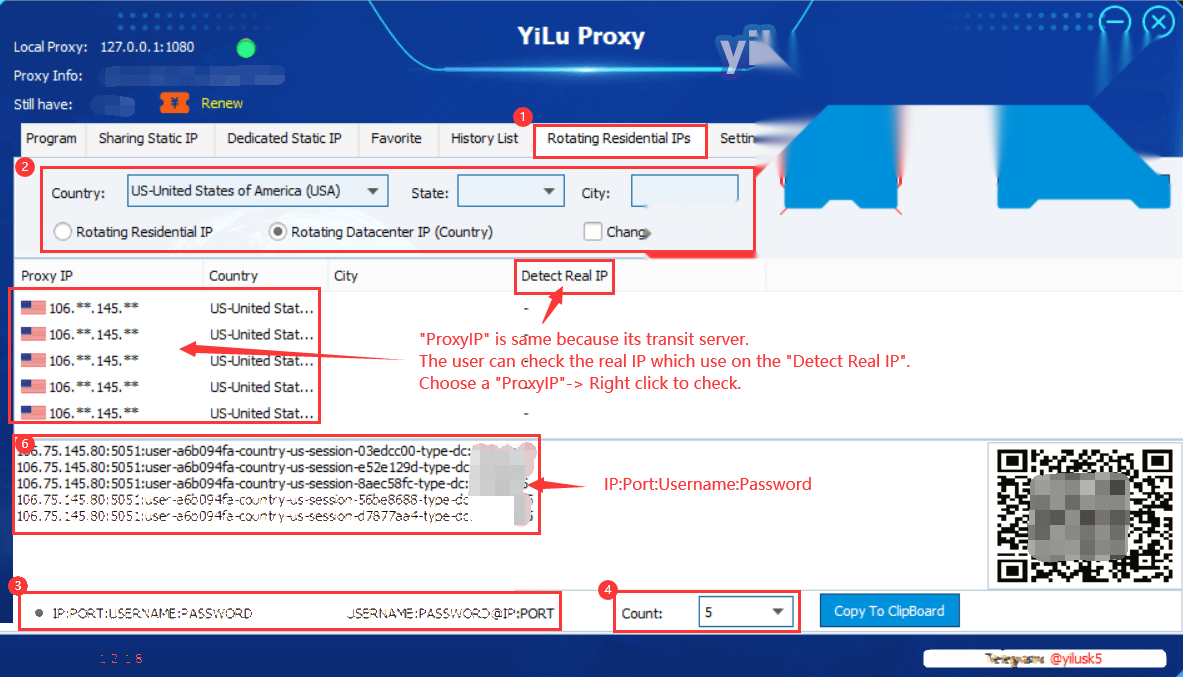
3.Extract IP information from the "Rotating Residential IP":
① Click the "Rotating Residential IP" page;
② Select the Rotating IP type (Residential IP or Datacenter IP) and the desired country, state, or city;
③ Select the type of proxy information to be generated ( "IP:Port:Username:Password" or "USERNAME:PASSWORD@IP:PORT" );
④ Select the number of IPs to be generated;
⑤ Click the "Refresh" button to refresh IP information;
Note: The generated "Proxy" is the IP of the transit server, so they are all the same. The IP which you are using is the IP in the "Detect Real IP" list, you can select the IP and right-click to view it.
4.“LeiDian” simulator "Postern" settings:
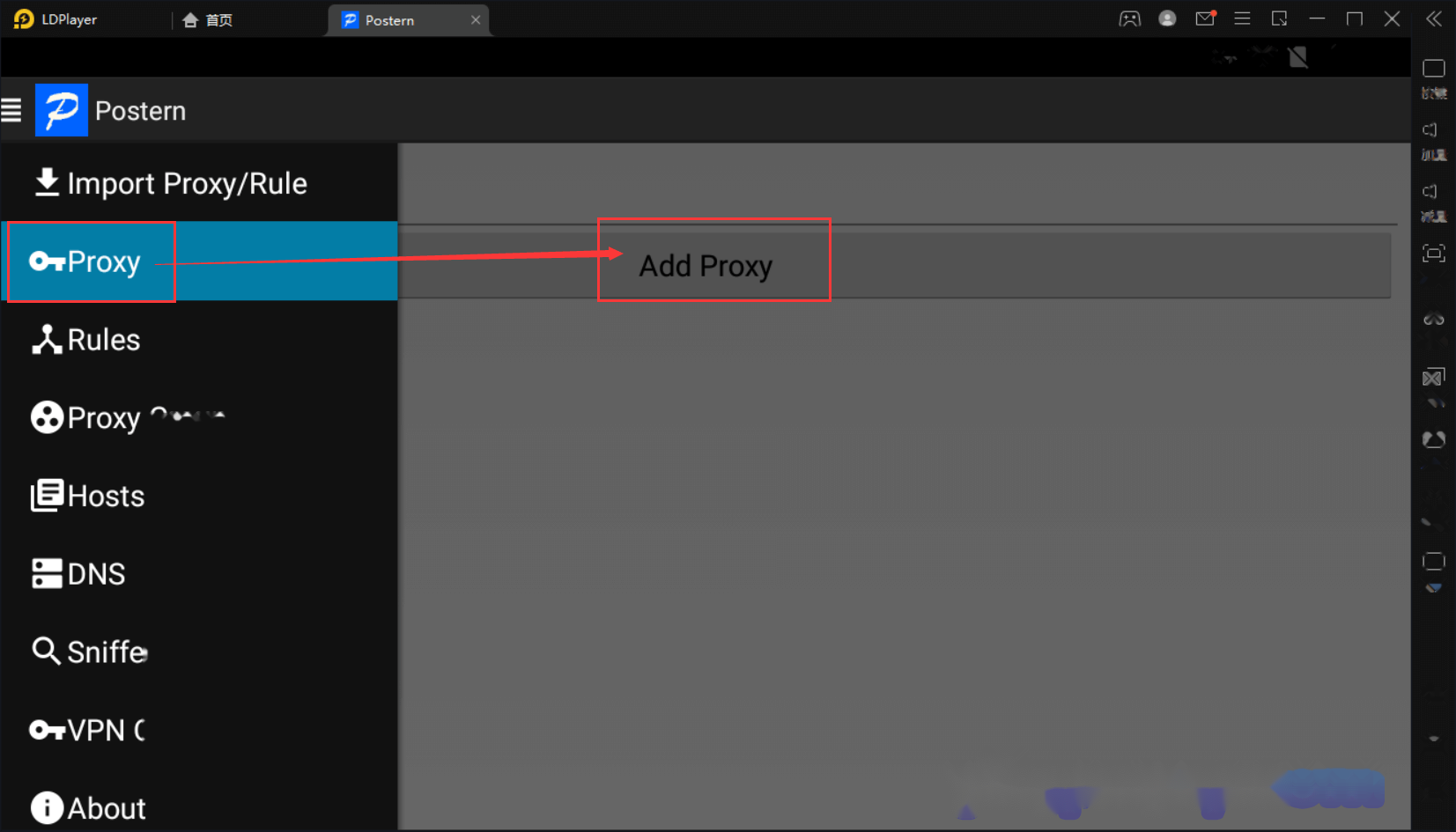
① Open the "Postern" ;
② “Proxy” -> Click "Add Proxy " to add proxy;
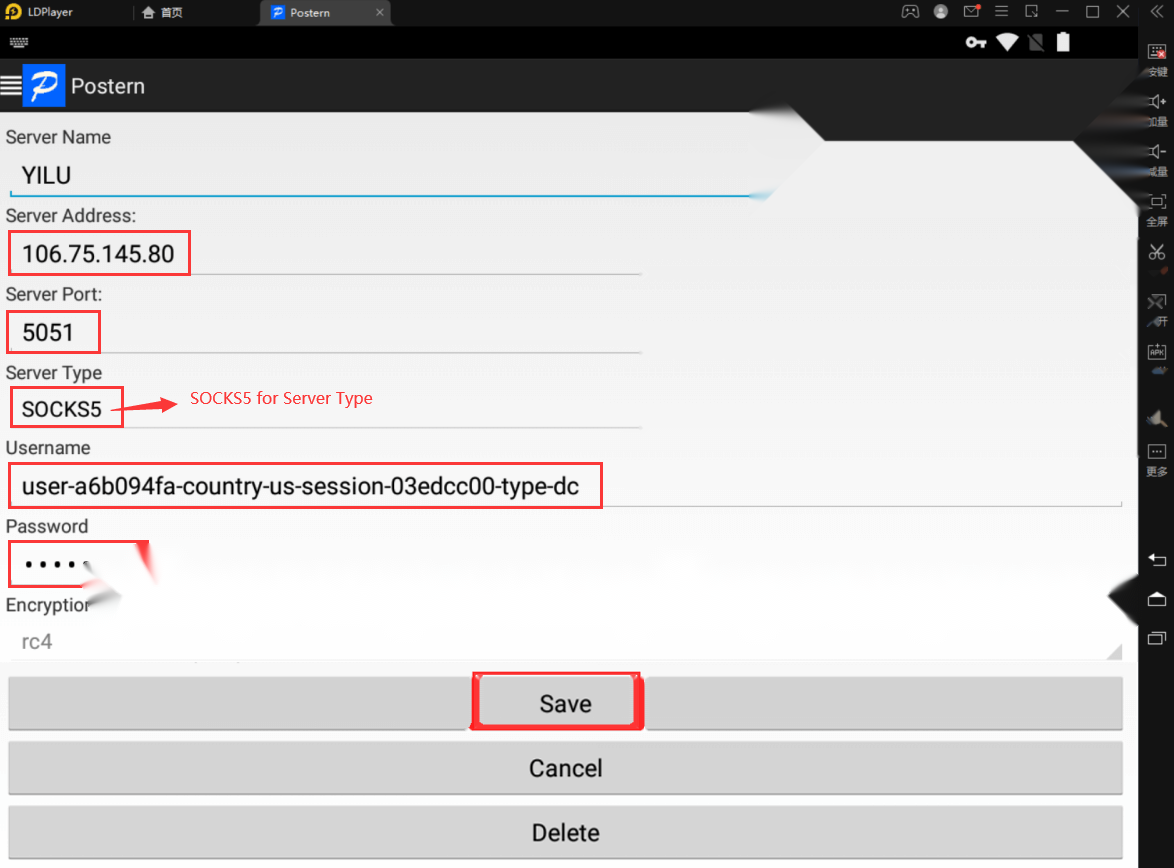
③ Copy the “IP:Port:Username:Password” from YiLu client which was generated, and fill in the corresponding IP information into the form and save it;
Note: The proxy type needs to select "SOCKS5", and the IP’s username must be filled in completely.
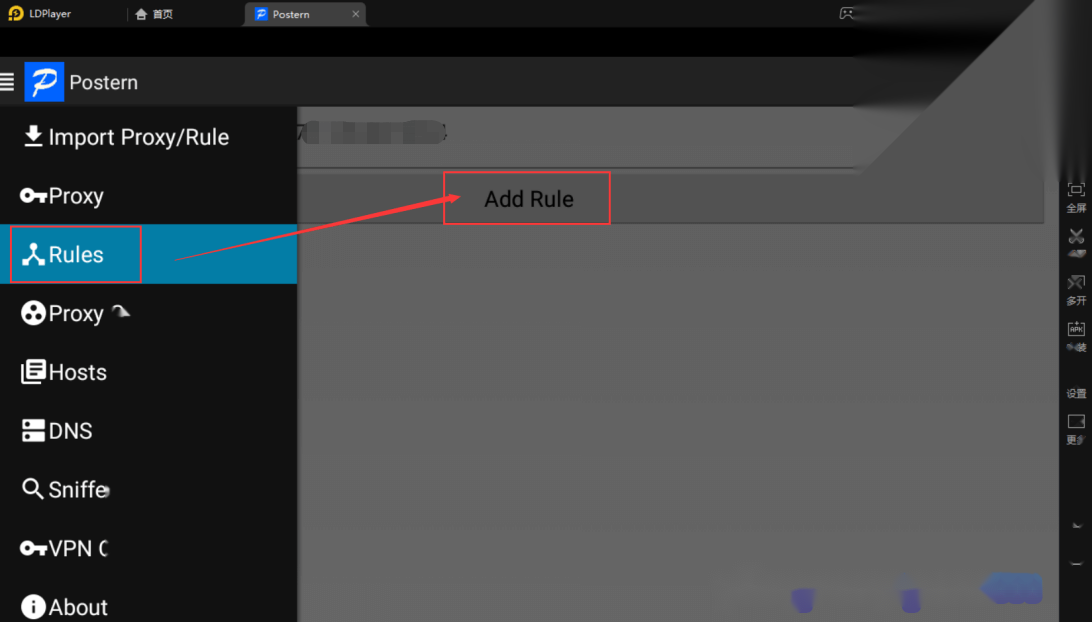
- Rules -> Click “Add Rule”
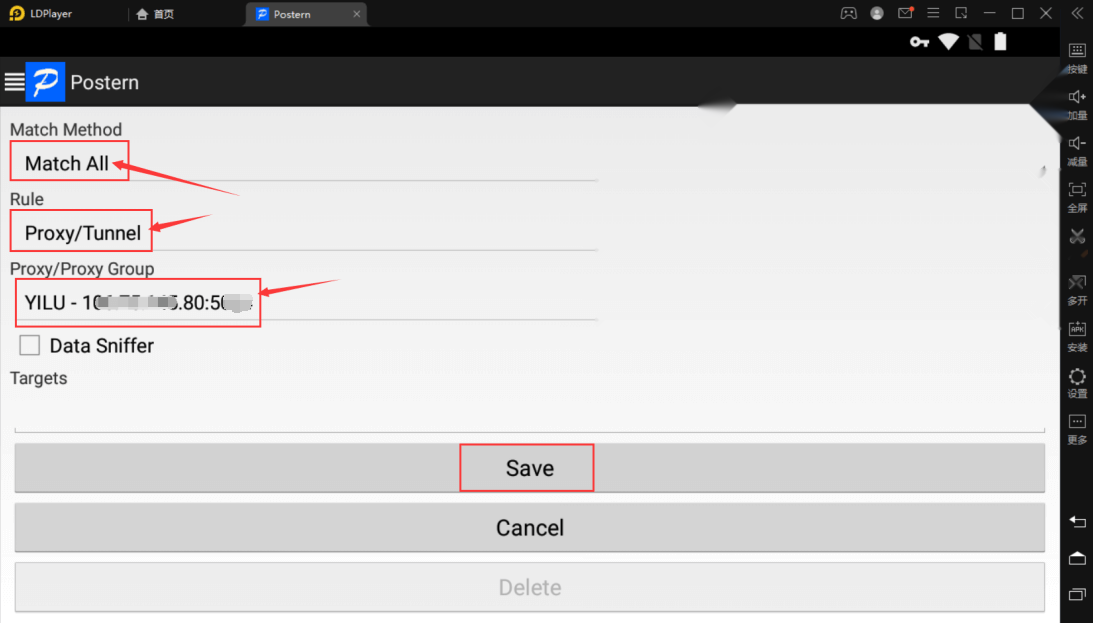
① Match Method - > Select the "Match All” ;
② Rule -> Select the “Proxy/Tunnel”;
③ Proxy/Proxy Group - > Select the created proxy;
④ Click "Save".
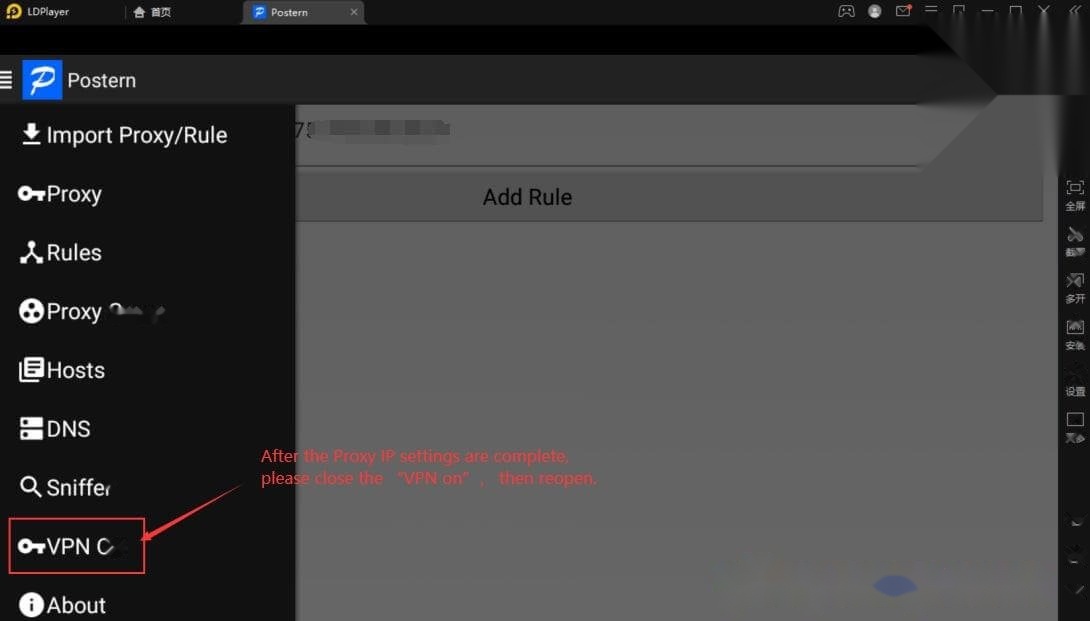
- After the Proxy settings are complete, please close the “VPN On” , then reopen;
- Open the browser to check whether the IP is changed.